WiFi module replacement
This step-by-step repair guide walks you through fixing wifi module replacement on your LG LWS3063ST (Wall Oven). With the right tools and parts, most homeowners can complete this repair in 1–2 hours and avoid a costly service call.
🔨 Pro Tip from Dave
When replacing the WiFi module on the LG LWS3063ST, source part number EBR86488913 and watch out for the ribbon cable connector near the control board — it’s fragile and easy to tear if you pull at the wrong angle. Many techs mistakenly assume a factory reset fixes the issue, but once the module hardware fails, software resets accomplish nothing and you’ll just waste time cycling power.
Part of our Top 20 Oven Models & Common Repair Issues Guide. Browse all oven repair guides for related models and issues.
“`html
Common Symptoms & Causes
The following symptoms suggest the WiFi module on your LG LWS3063ST wall oven may need to be replaced.
- The LG ThinQ app fails to detect or connect to the oven despite a strong WiFi signal
- The oven display shows a “F7” or network-related error code during setup
- Remote preheat and monitoring features stop responding or disconnect frequently
- The WiFi indicator light on the control panel remains off or blinks continuously
These issues are typically caused by a failed or corrupted WiFi module, often resulting from power surges, firmware incompatibility, or normal component wear over time.
“`
Safety First
- Unplug the oven from the power outlet before starting any repair — never work on a live appliance.
- Wear work gloves when handling metal brackets, sheet metal edges, or sharp components.
- Take photos with your phone before disconnecting any wiring harnesses or connectors.
- Work in a well-lit area with enough floor space to lay removed panels flat.
Tools & Parts Needed
Essential Tools
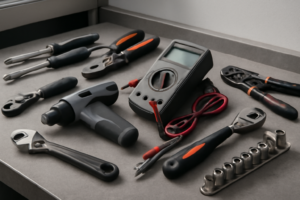
- Phillips #2 screwdriver
- ¼” nut driver
- Multimeter
- Work gloves (heat-rated)
- Flashlight
Replacement Parts
Step-by-Step Repair Instructions
Step 1
Disconnect power to the oven at the circuit breaker before doing anything else, since wall ovens operate on 240V and pose a serious electrocution risk. While power is off, confirm your router is actively broadcasting a 2.4 GHz band — LG’s WiFi module does not support 5 GHz, and attempting to pair on the wrong band is the most common reason setup fails entirely.
Step 2
Restore power at the breaker, then press the WiFi button on the oven’s control panel to activate pairing mode; the indicator light will begin blinking to confirm the module is ready to handshake. This step verifies the existing WiFi module is at least powering on and responding — if no light appears or the button is unresponsive, the module itself is likely faulty rather than a configuration issue.
Step 3
Open the LG ThinQ app and navigate to Add Device → Smart Appliance → Oven, making sure your phone is connected to the same 2.4 GHz network you want the oven to use — connecting your phone to 5 GHz during this process will silently cause pairing to fail. Follow the in-app prompts closely, as the app pushes network credentials directly to the module; any mismatch in network name or password at this stage will drop the connection before it completes.
Step 4
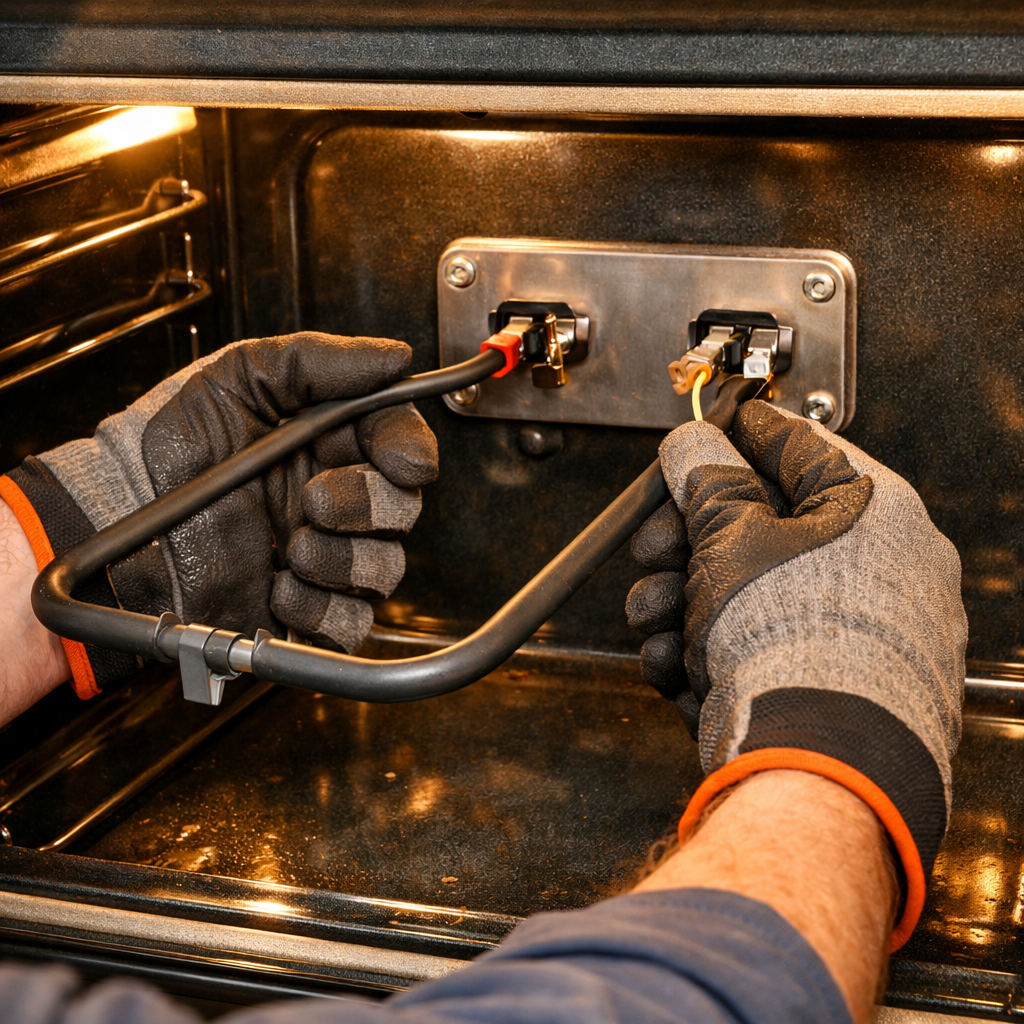
If pairing consistently fails after confirming network settings, the WiFi module PCB itself is defective and needs physical replacement. Disconnect power at the breaker again, then remove the oven trim panel by backing out the two Phillips screws, which exposes the module mounted to the control board assembly. Pro tip: photograph the connector orientation before unplugging anything — the ribbon cables are easy to reseat incorrectly, which can cause a no-power condition on the control panel.
Step 5
With the new module seated and the trim panel reinstalled, restore power and re-run the full ThinQ pairing setup from the beginning, treating it as a first-time connection. The replacement module ships unpaired and has no memory of previous networks, so skipping the full setup sequence will leave the oven offline even though the hardware is functional.
Step 6
Once pairing succeeds, open ThinQ app settings for the oven and explicitly enable remote preheating and monitoring — these features are off by default as a safety measure and will not activate on their own. Enabling them allows you to preheat the oven remotely and receive alerts if a cook cycle completes or is interrupted, which is particularly useful for confirming the new module is maintaining a stable connection over time.
Where to Buy Replacement Parts
Find genuine OEM and aftermarket replacement parts for your LG LWS3063ST (Wall Oven) on Amazon:
- LG LWS3063ST wall oven WiFi module EBR82797404 replacement
- LG ThinQ wall oven app WiFi setup procedure
- LG wall oven 2.4GHz WiFi connect router setup
When to Call a Professional
If the issue persists after completing all steps above, the problem may involve the sealed refrigerant system, a failed main control board, or wiring that requires specialized diagnostic equipment. Contact a licensed appliance technician — attempting sealed-system repairs without EPA 608 certification is illegal and unsafe.
“`html
How Much Does This Repair Cost?
Replacing the WiFi module on an LG LWS3063ST typically costs $40–$90 for the part alone when doing it yourself. A professional appliance technician will usually charge $150–$300 once you factor in the service call, labor, and parts markup. Taking the DIY route can save you $100 or more on this straightforward repair.
“`
Frequently Asked Questions
Do I need to reset my LG LWS3063ST after replacing the WiFi module?
Yes, after installing the new module you should perform a factory reset on the oven’s control panel and reconnect it to your home network through the LG ThinQ app.
Will replacing the WiFi module erase my saved oven settings?
Replacing the WiFi module typically does not erase core oven settings, but your network credentials and ThinQ app pairing will need to be reconfigured.
Is it safe to replace the WiFi module myself on the LG LWS3063ST?
Yes, but always disconnect the oven from power at the breaker before starting. If you’re uncomfortable working near electrical components, contact a certified appliance technician.
Recommended Products
These are the parts and tools we recommend for this repair, based on compatibility and customer reviews:
- CoreCentric Remanufactured Dishwasher Electronic Control Board Replacement for LG ebr79609805
- EBR83845001 for LG Refrigerator Main Control Board
- BESTPROS EBR88309764 REFRIGERATOR MAIN PCB ASSEMBLY COMPATIBVLE WITH LG EBR88309764
- LG EBR74164805 Genuine OEM Relay Control Board for LG Range/Stove/Ovens
As an Amazon Associate, I earn from qualifying purchases.