Wi-Fi pairing failure
This step-by-step repair guide walks you through fixing wi-fi pairing failure on your Samsung DW80CG5451SR. With the right tools and parts, most homeowners can complete this repair in 1–2 hours and avoid a costly service call.
🔨 Pro Tip from Dave
On the DW80CG5451SR, a common mistake is skipping a full power cycle at the breaker before attempting re-pairing — the onboard controller can hold a corrupted network state that a simple door reset won’t clear. The Wi-Fi communication module (part number DD82-01357A) is the usual culprit when power cycling fails, and technicians often overlook checking that the SmartThings app region settings match the dishwasher’s registered region before condemning the part.
Part of our Top 20 Dishwasher Models & Common Repair Issues Guide. Browse all dishwasher repair guides for related models and issues.
“`html
Common Symptoms & Causes
The following symptoms indicate your Samsung DW80CG5451SR is experiencing a Wi-Fi pairing failure.
- The SmartThings app repeatedly fails to detect the dishwasher during setup
- The Wi-Fi indicator light on the control panel flashes continuously without connecting
- The dishwasher displays a “SmartThings Connection Failed” error on the LCD panel
- The unit drops from the SmartThings network shortly after a successful pairing
These issues are typically caused by a faulty Wi-Fi module, outdated firmware, router compatibility conflicts, or a corrupted network configuration stored in the control board.
“`
Safety First
- Unplug the dishwasher from the power outlet before starting any repair — never work on a live appliance.
- Shut off the water supply valve before disconnecting any water lines or hoses.
- Wear work gloves when handling metal brackets, sheet metal edges, or sharp components.
- Take photos with your phone before disconnecting any wiring harnesses or connectors.
- Work in a well-lit area with enough floor space to lay removed panels flat.
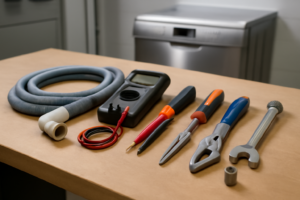
Tools & Parts Needed
Essential Tools
- Phillips #2 screwdriver
- Torx T20 screwdriver
- Needle-nose pliers
- Multimeter
- Flashlight
Replacement Parts
Step-by-Step Repair Instructions
Step 1
Confirm your router is broadcasting on the 2.4 GHz band, because Samsung dishwashers do not support 5 GHz Wi-Fi and will silently fail to connect if you attempt pairing on that band. Log into your router admin page or check your phone’s Wi-Fi settings to verify the band before proceeding. If your router uses a combined SSID for both bands, temporarily disable 5 GHz or split them into separate network names to prevent the dishwasher from latching onto the wrong one.
Step 2
Put the dishwasher into Wi-Fi pairing mode by pressing and holding the two buttons shown on the SmartThings app pairing screen — this activates the onboard Wi-Fi module and makes the appliance discoverable, steps that must happen in the correct order or the app will time out. Watch for the Wi-Fi indicator to appear on the control panel display as confirmation the dishwasher has entered pairing mode. Pro tip: have the SmartThings app open and ready on the pairing screen before pressing the buttons, since the pairing window is time-limited.
Step 3
With your phone connected to the same 2.4 GHz network, follow the SmartThings app prompts and keep your phone within 3 feet of the dishwasher throughout the process. Distance and physical obstructions are a common cause of handshake failures, because the initial Bluetooth or Wi-Fi direct signal used during setup is low-power. Do not switch apps, let your screen lock, or move away from the appliance until the app confirms a successful connection.
Step 4
If pairing fails three or more times in a row, the dishwasher’s network stack may be in a corrupted or stuck state that a simple retry will not clear. Disconnect power at the circuit breaker or wall outlet for a full 5 minutes to allow capacitors to discharge and the module to fully reset, then retry pairing immediately after power is restored. Acting quickly after the reset matters because the module initializes cleanly on first boot and that window is your best chance for a successful connection.
Step 5
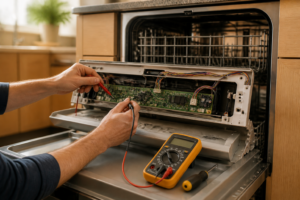
If the Wi-Fi icon never appears on the control panel display at any point during the pairing steps, the Wi-Fi module itself has likely failed and software troubleshooting will not resolve it. Disconnect power before opening the door, then remove the inner door panel by extracting the 4 T20 Torx screws to access and replace the Wi-Fi module. After installing the new module, re-pair from scratch through SmartThings, as the replacement module will have no network credentials stored.
Step 6
Once the dishwasher is successfully connected, immediately check for and apply any available firmware updates through the SmartThings app. Manufacturers frequently release firmware patches that fix known pairing bugs, improve connection stability, and add features, so running outdated firmware can cause the same Wi-Fi issues to reappear. The update runs over Wi-Fi in the background and does not require any interaction with the dishwasher’s control panel.
Where to Buy Replacement Parts
Find genuine OEM and aftermarket replacement parts for your Samsung DW80CG5451SR on Amazon:
- Samsung SmartThings dishwasher WiFi setup DW80CG5451SR
- Samsung dishwasher WiFi module replacement DD82-01397A
- home router 2.4GHz band Samsung appliance setup
When to Call a Professional
If the issue persists after completing all steps above, the problem may involve the sealed refrigerant system, a failed main control board, or wiring that requires specialized diagnostic equipment. Contact a licensed appliance technician — attempting sealed-system repairs without EPA 608 certification is illegal and unsafe.
“`html
How Much Does This Repair Cost?
DIY repairs for Wi-Fi pairing failure on the Samsung DW80CG5451SR typically cost between $0–$50, covering any replacement parts like a new Wi-Fi module or router equipment. Professional service calls generally run $150–$300 once labor and diagnostics are factored in. Choosing the DIY route can save you $100–$250 or more on this repair.
“`
Frequently Asked Questions
Why won’t my Samsung DW80CG5451SR connect to my Wi-Fi network?
The DW80CG5451SR only supports 2.4GHz networks, so make sure your phone and router are broadcasting on that band during pairing. Dual-band routers sometimes need to have the 2.4GHz network set as a separate SSID.
Do I need the SmartThings app to complete the Wi-Fi pairing?
Yes, Samsung requires the SmartThings app to pair this dishwasher to your home network. Download it on your smartphone before starting the pairing process.
Will resetting the dishwasher erase my cycle settings?
A Wi-Fi or network reset on the DW80CG5451SR only clears the network credentials, not your saved wash cycle preferences. Your custom settings will remain intact after reconnecting.
Recommended Products
These are the parts and tools we recommend for this repair, based on compatibility and customer reviews:
- DD82-01384A Lower Dishrack Assembly Compatible with samsung DW80R2031US, DW80M2020US, DW80N3030US, DW80CG4021SR, DW80CG4051SR etc Dishwashers, Replace Number: 4959326 AP6244429 PS12085689 etc
- Samsung DD82-01337B Dishwasher Electronic Control Board
- Upgraded DD82-01373A Case Brake and Overflow Sensor Fit for Samsung Dishwasher DW80J3020UB DW80J3020US, Replace DD82-01111A DD82-01111B, 9.1 * 15 Inch
- Samsung DD94-01062A Dishwasher Leak Sensor Assembly
As an Amazon Associate, I earn from qualifying purchases.